When using Category price rules to update sales trade agreements and selecting to expire previous trade agreements, you must manually post the expired price/discount agreement journal before the original trade agreement is expired.
NOTE: If the original trade agreement was not created using the same Category price rule, the Expiration Journal will not be created and you will need to manually expire the trade agreement.
As an example I have created an item number named Test and assigned it to the Action Sports Retail Category.
This new item does not have a sales trade agreement.
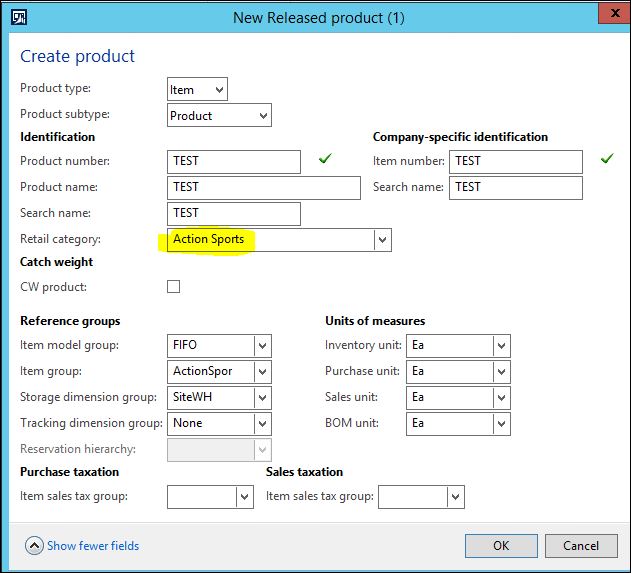
I can use the Category Price rules functionality in AX 2012 R3 to create the original trade agreement
Go to Retail>Periodic>Category price rules.
Add a record for the Action Sports category with the Price rule you want.
In the following example I am using a “Fixed amount” and setting the trade agreement price to $10.00
Select “Generate trade agreements” to open the Generate trade agreements wizard.

I selected ‘Items without prices’ for the product selection.
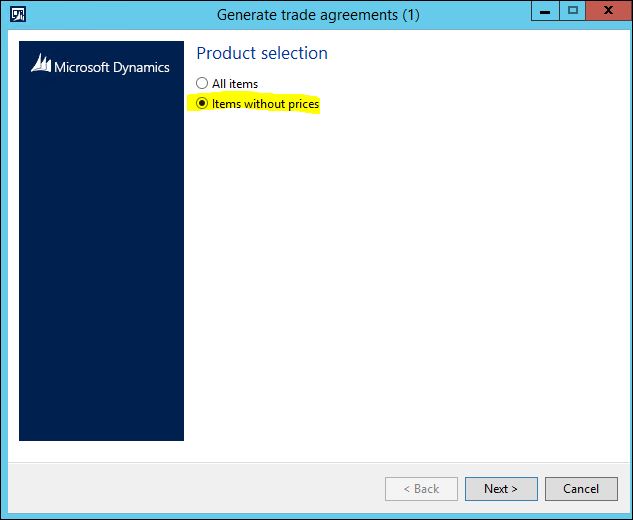
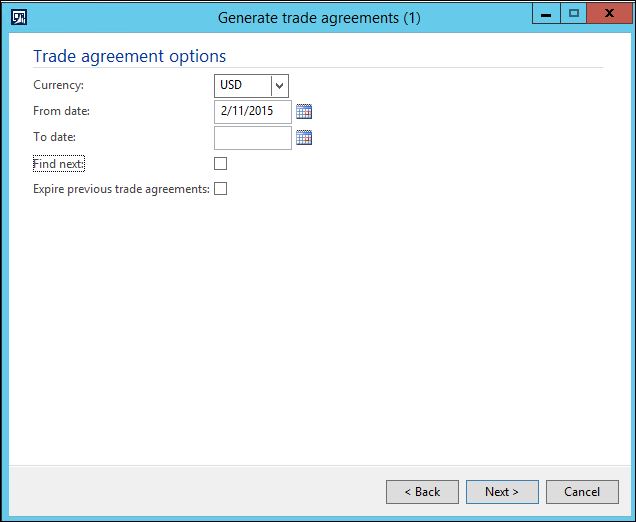
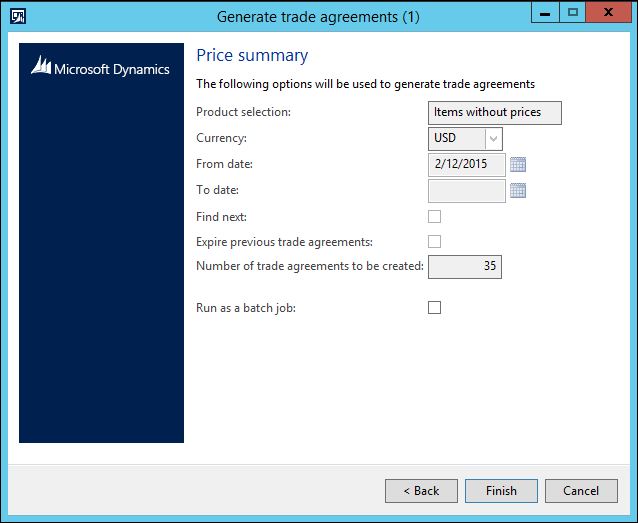
The wizard found my new item and updated the Amount to the Fixed amount I specified in the Category price rules window.
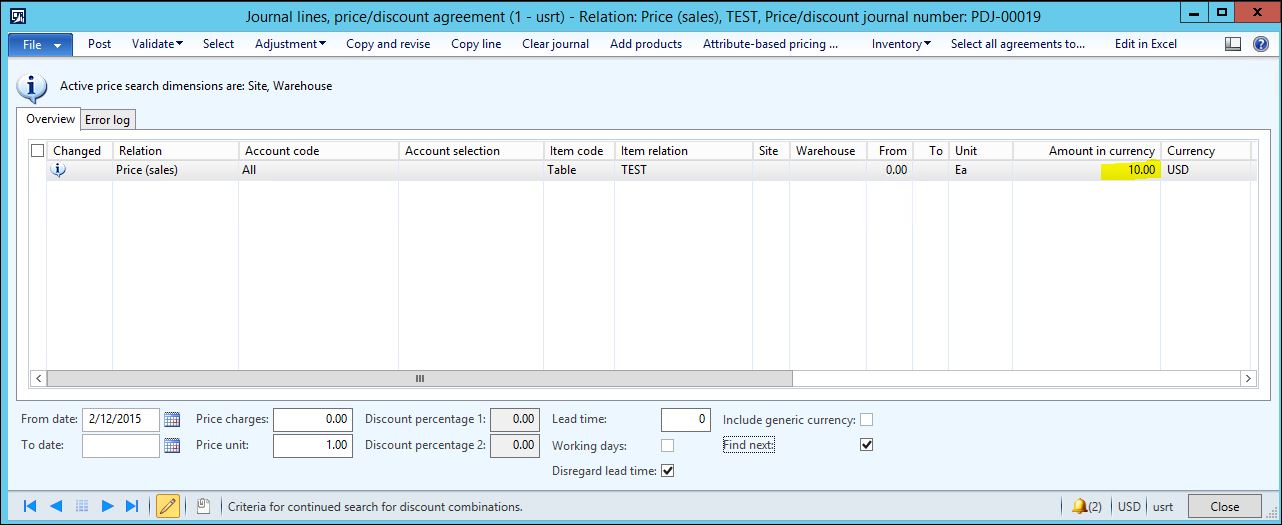
Post the Price/discount agreement journal.
In Released Products>Sell tab>View trade agreements, you can see the trade agreement was created.
I did not specify a “To date”, so this trade agreement does not expire.
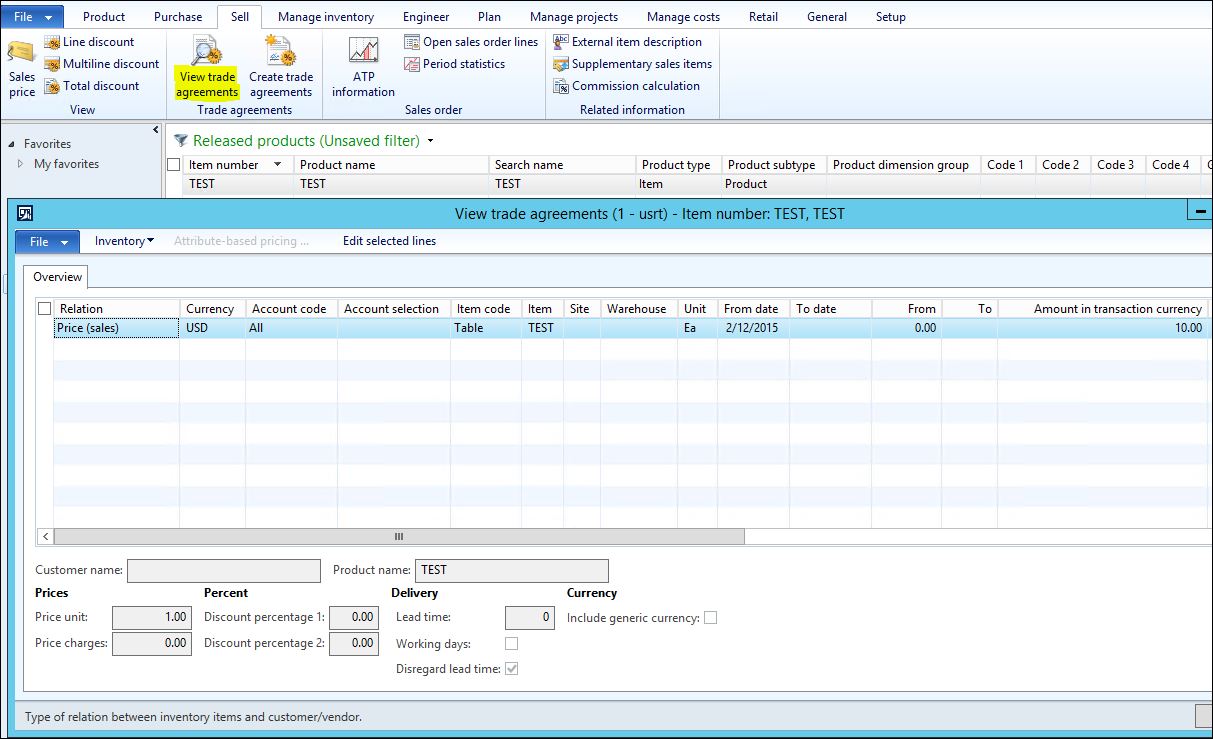
If you were to add the item to a Sales order, the unit price would calculate $10.00.
In the Category price rules window, I will now change the Price rule to “Markup” and update the current price by 10 percent.

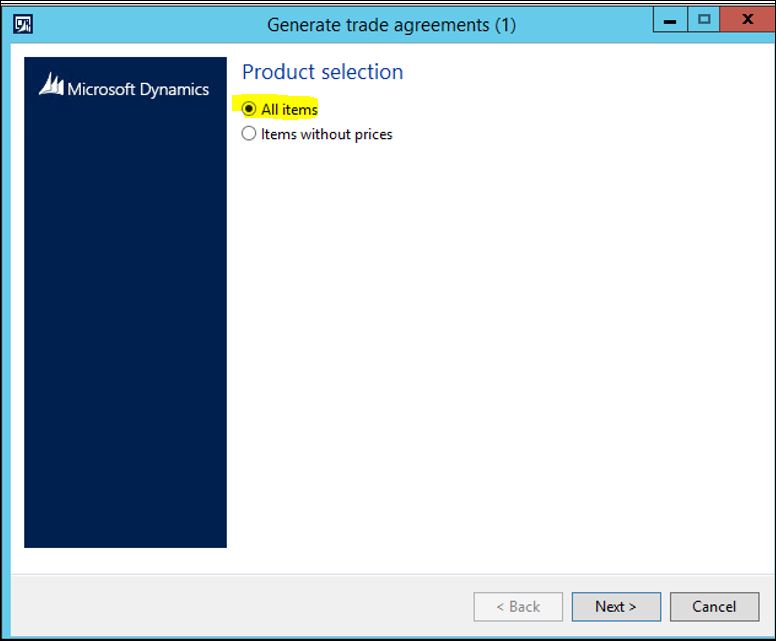
This time when I click “Generate trade agreements”, I want to select “All items”.
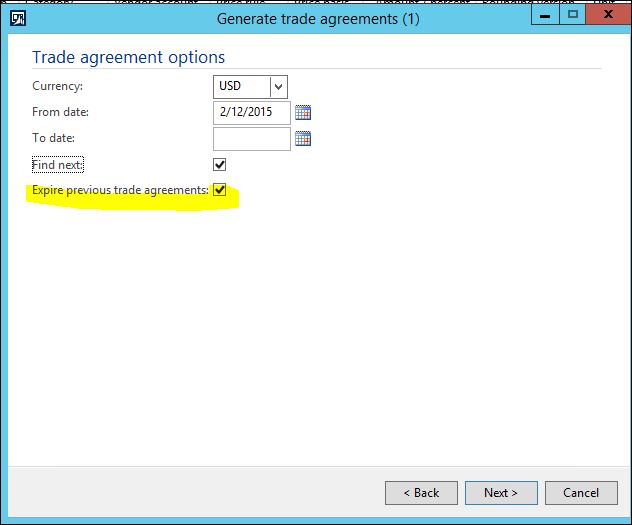
In the Trade agreement options, I can set the “To date” if I want the new trade agreement to expire on a certain date.
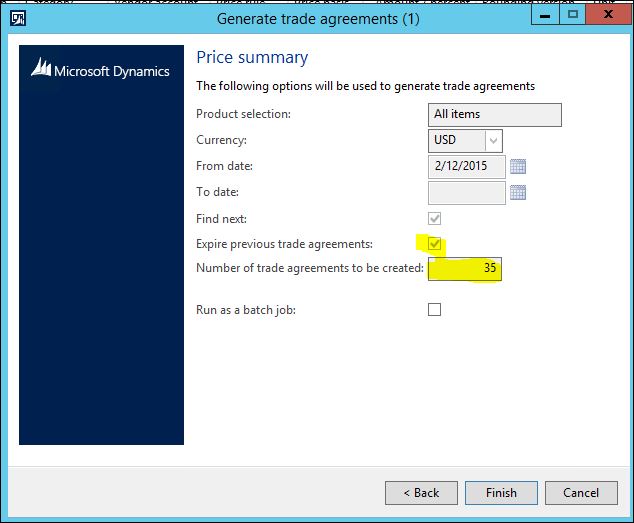
I select “Expire previous trade agreements” because when I sell my Test item I do not want to use the original trade agreement price of $10 and want to use the new price of $11.
A Price summary window will show how many trade agreements will be created.
The Wizard will create a price/discount agreement journal for the new trade agreement that you can adjust as you would like before posting. An infolog will also provide you with a message that a journal was created that will expire the previous trade agreement.
Note: If you do not receive a Infolog with the message “Created a journal with lines to be expired”, there was not an original trade agreement created with this specific Category price rule and a expire journal will not be created. The current trade agreement must be set to expire manually.
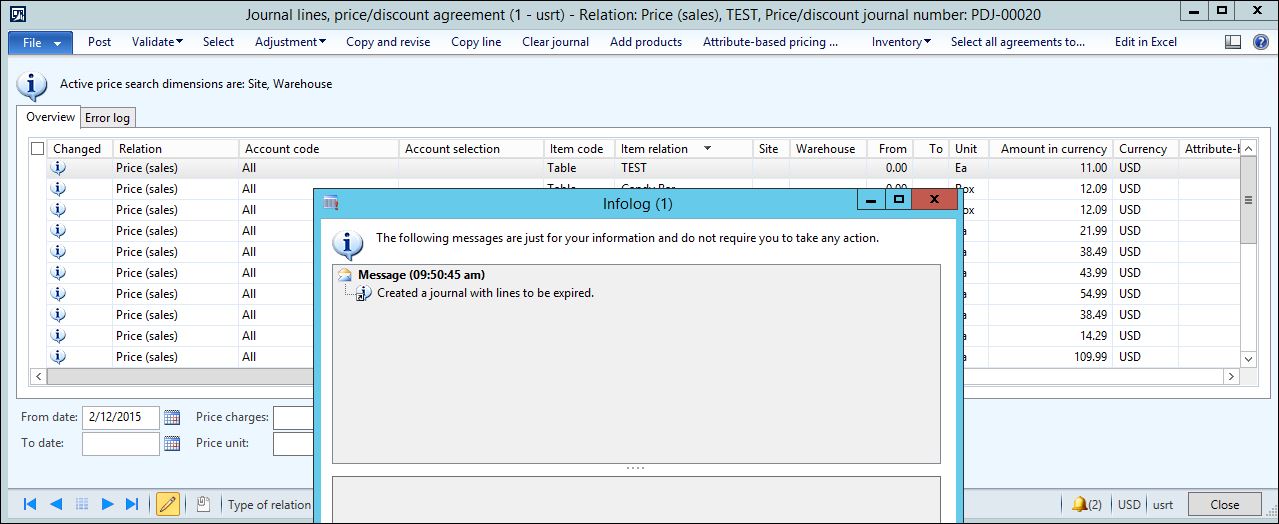
You can post the journal for the new trade agreement that will change my Test item price to $11.00.
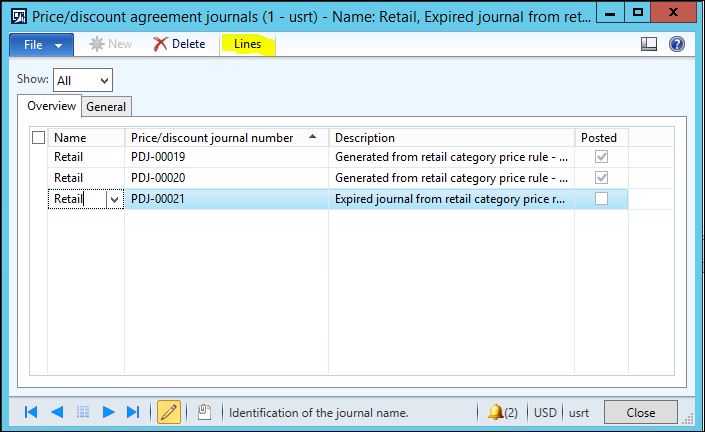
In the Category price rules window, click View journals

The first journal is the original trade agreement, the second journal is the trade agreement with the price increase and you can see that both journals are posted.
We also have an Expired journal created that is not posted yet.
Select the Expired journal and click the Lines button
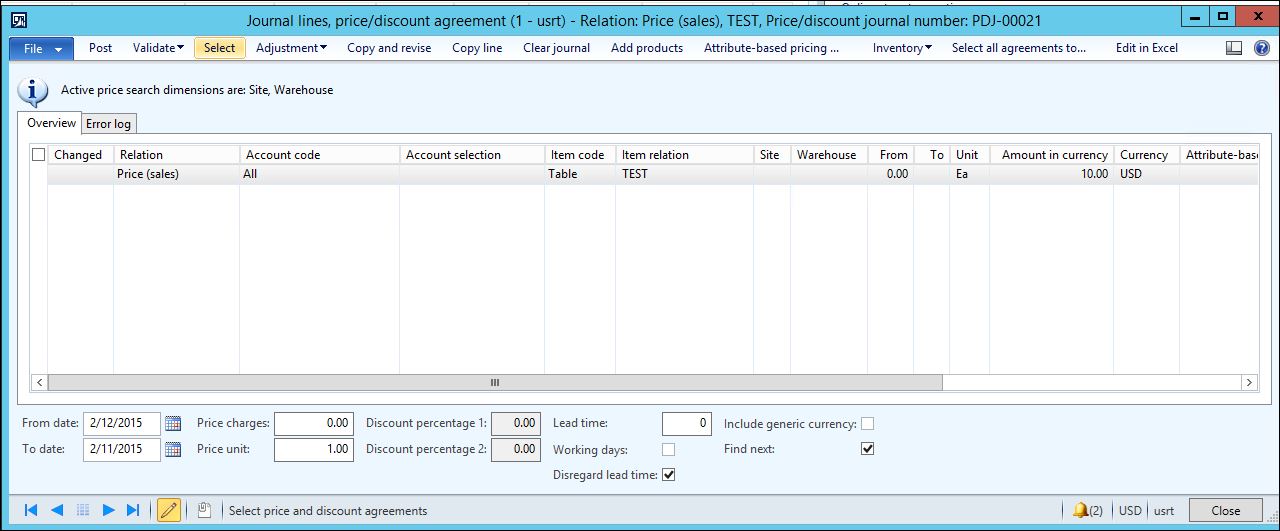
The Price/discount agreement journal is created to expire the original trade agreement and the “To date” will be updated with the day before the “From date”.
If you go back to Released products for the item and look at the trade agreement, you can see that the “To date” has been changed and the original trade agreement is now expired.
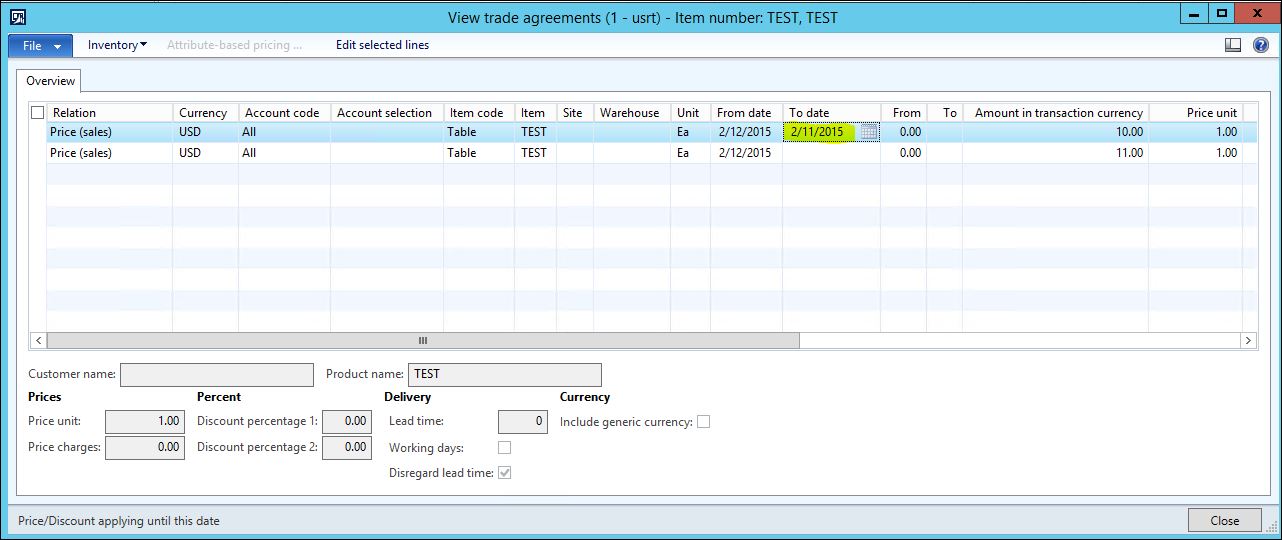
Note: If the Expired journal from the Category pricing rules was not posted, the original trade agreement will still be used on Sales orders.
If the original trade agreement did not originate from the Category pricing rules, the Expired journal will not be created and the Sales orders will still use the original trade agreement. The original trade agreement will need to manually change the “To date” so the original trade agreement is expired.