This article will explain how to create a General Budget Reservation for tracking Committed Cost on a Project.
This article assumes that you have installed KB3047235 on an AX 2012 R3 CU8 environment and you are using public sector. It also assumes you have gone through all the initial setup required that are listed in MSDN article: https://msdn.microsoft.com/en-us/dynamics/dn792460(v=ax.60)
or through blog: How to setup General Budget Reservation functionality that was added after AX 2012 R3 CU8 for Public Sector: http://blogs.msdn.com/b/axsupport/archive/2015/05/26/how-to-setup-general-budget-reservation-functionality-that-was-added-after-ax-2012-r3-cu8-for-public-sector.aspx
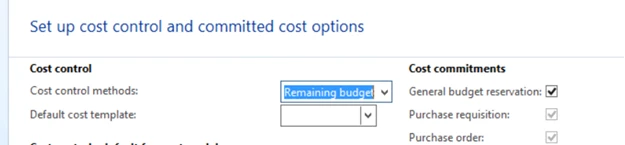
In the Project Management and Accounting Parameters you will need to make sure to include General Budget Reservations with Committed Cost. Project Management and Accounting | Setup | Project Management and Accounting Parameters
- Click the Cost Control Option
- Mark General Budget Reservation checkbox
- Close the form
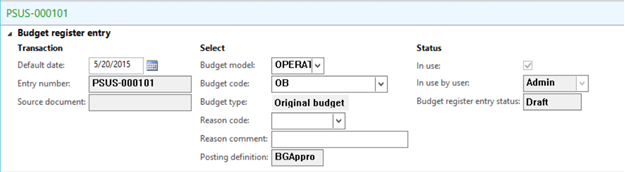
Create a Budget Register Entry to track your budget – Budgeting | Common | Budget Register Entries | All Budget Register Entries – In the Budget Register Entry tab, in the New group, click the Budget Register Entry button.
- Select your Budget Model
- Select your Budget Code
- Click the Add Line button
- Select the Account Structure
- Enter the Dimension Values
- Enter the Amount

- In the Budget Register Entry tab in the Update group click the Update Budget Balances button
- Click Ok if prompted
- Close the Infolog
- Close the Budget Register Entry form
Create a new Project – Project Management and Accounting | Common | Projects | All Projects – In the Project tab in the New group click the Project button
- Select the Project Type
- Enter the Project Name
- Select the Project Group
- Select a Project Contract ID or Create a new one
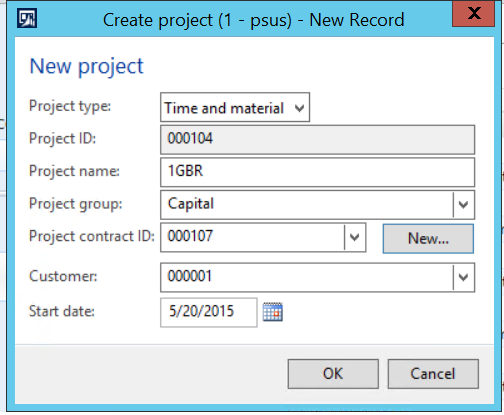
- Click Ok button
- Click the Project Contract ID link
- Expand the Funding Limits fast tab
- Click the Add button
- Select a Funding Source
- Select a Project
- Enter an Amount

- Close the Projects Contract form
- In the Projects form in the Project tab in the Maintain group click the Project Stage button and select In Process
- Click Ok if Prompted
- Close the Project form
Create a General Budget Reservation to link to the Project you created – Budgeting | Common | General Budget Reservation | All General Budget Reservation – In the Budget Reservation tab in the New group click the Budget Reservation button
- Select Reservation Type: Make sure the reservation time is relieving on the PO
- Enter Reservation Title
- Enter the End date
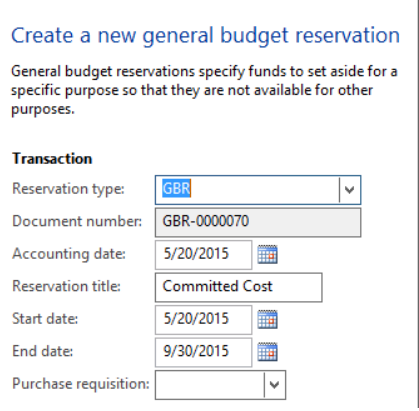
- Click Ok
- Click the Add Line button
- Enter the Transaction Text
- Select the Project you created above
- Change the Category if needed
- Enter the Quantity
- Enter the Unit Price

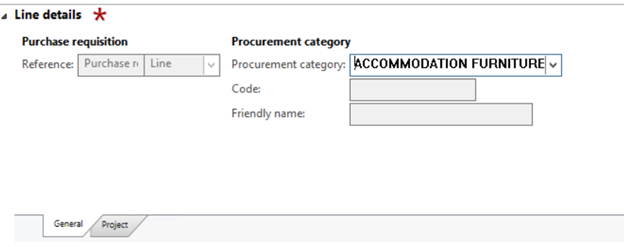
- Expand the Line Detail fast tab
- Select the General tab
- Select the Procurement Category
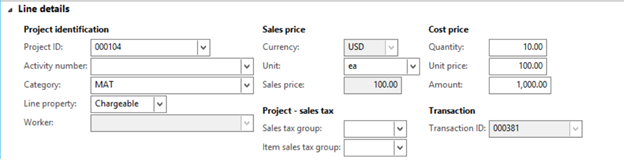
- Click the Project tab
- Select the Unit
- Save the record
- Click the Distribute Amounts button
- Verify the Ledger Account matches the Ledger Account matches the Budget Register Entry

- In the Budget Reservation tab in the Post group click the Budget Reservation button
- Close the Budget Reservation form
Go back to the Project Contract for this project.
Note the Committed Amount –

In the Control tab in the Control group click the Committed Cost button.
You can see the General Budget Reservation has a cost amount.

If you click on the General tab you can see the General Budget Reservation that is linked.
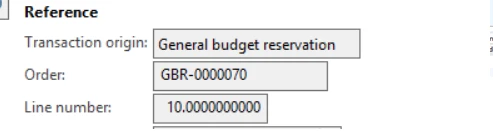
Now create a Purchase Order for this project – In the Project form in the Manage tab in the New group click the Item Task button and select Purchase Order
- Select the Vendor Account
- Click Ok
- Select the Procurement Category that was referenced above
- Enter Quantity
- Enter Unit
- Enter Unit Price

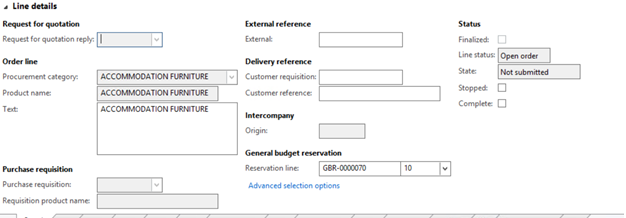
- Expand the Line Details fast tab
- Select the General Budget Reservation created above
- Save the record
- In the Purchase tab in the Generate group click the Confirm button
Now go back to the Project Contract, check the funding source and the Committed Cost form.
Note the Committed Amount does not change

In the Committed Cost form we can see there is a record for our Purchase Order and the Amount of Cost on the General Budget Reservation is reduced by the amount of the PO.

Now invoice part of the Purchase Order – In the Purchase Order form in the Invoice tab in the Generate group click the Invoice tab
- Enter the Number
- Change the Quantity to be less than the full amount

- In the Vendor Invoice tab in the Actions group click the Post button
Go back to the Project Contract for the Project.
Note the Spent Amount is update and the Committed amount is reduced.

The Cost Amount on the PO is reduced by the amount of the vendor invoice.

The General Budget Reservation will hold the cost until it is relieved by the Purchase Order, which will then transfer the cost from the General Budget Reservation to the Purchase Order.