Azure HDInsight Adds Deeper Tooling Experience in Visual Studio
To allow developers in Visual Studio to more easily incorporate the benefits of “big data” with their custom applications, Microsoft is adding a deeper tooling experience for HDInsight in Visual Studio in the most recent version of the Azure SDK. This extension to Visual Studio helps developers to visualize their Hadoop clusters, tables and associated storage in familiar and powerful tools. Developers can now create and submit ad hoc Hive queries for HDInsight directly against a cluster from within Visual Studio, or build a Hive application that is managed like any other Visual Studio project.
Download the Azure SDK now for VS 2013 | VS 2012 | VS 2015 Preview.
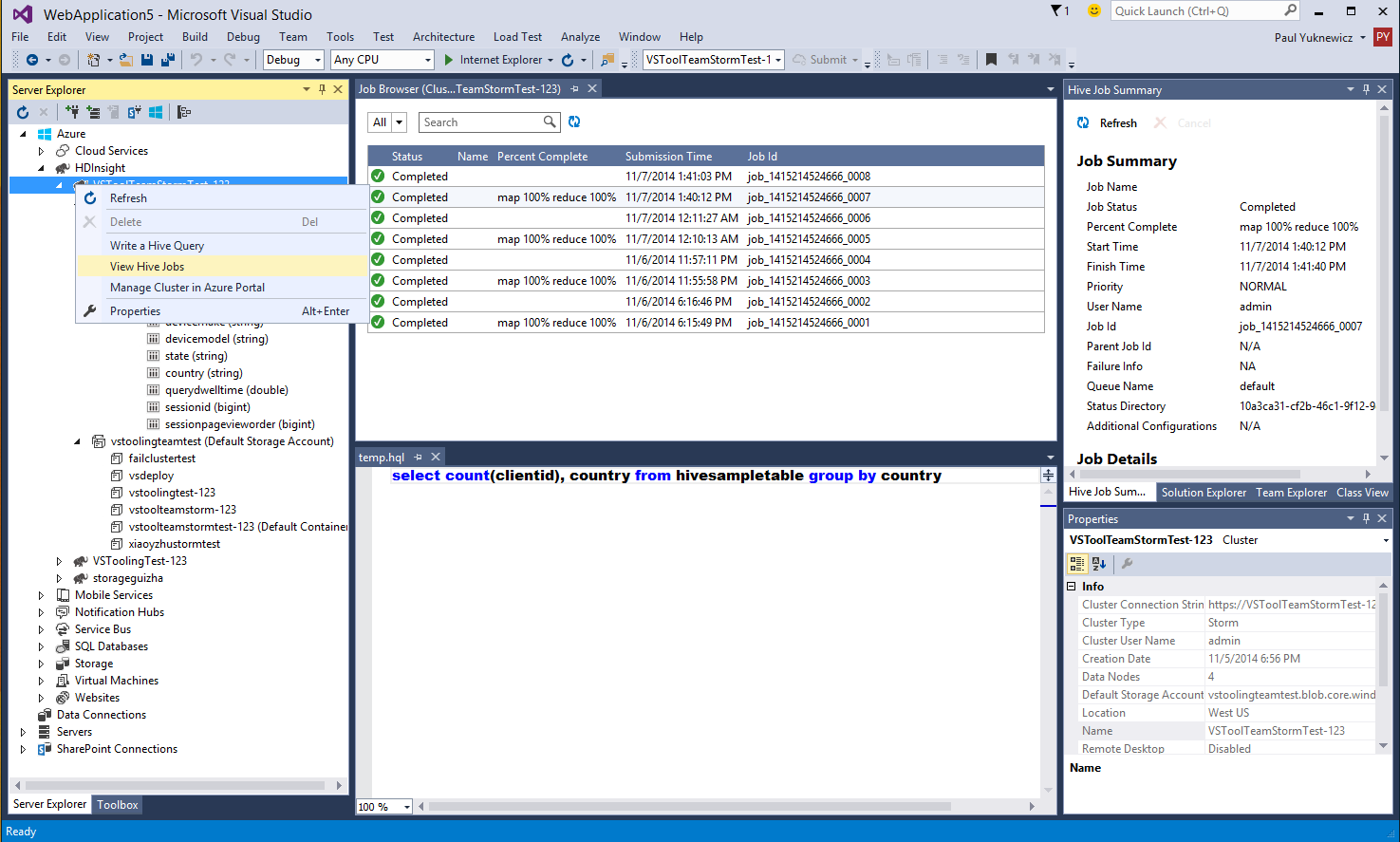
Integration of HDInsight objects into the “Server Explorer” brings your Big Data assets onto the same page as other cloud services under Azure. This allows for quick and simple exploration of clusters, Hive tables and their schemas, down to querying the first 100 rows of a table. This helps you to quickly understand the shape of the data you are working with in Visual Studio.
Also, there is tooling to create Hive queries and submit them as jobs. Use the context menu against a Hadoop cluster to immediately begin writing Hive query scripts. In the example below, we create a simple query against a Hive table with geographic info to find the count of all countries and sort them by country. The Job Browser tool helps you visualize the job submissions and status. Double click on any job to get a summary and details in the Hive Job Summary window.
You can also navigate to any Azure Blob container and open it to work with the files contained there. The backing store is associated with the Hadoop cluster during cluster creation in the Azure dashboard. Management of the Hadoop cluster is still performed in the same Azure dashboard.
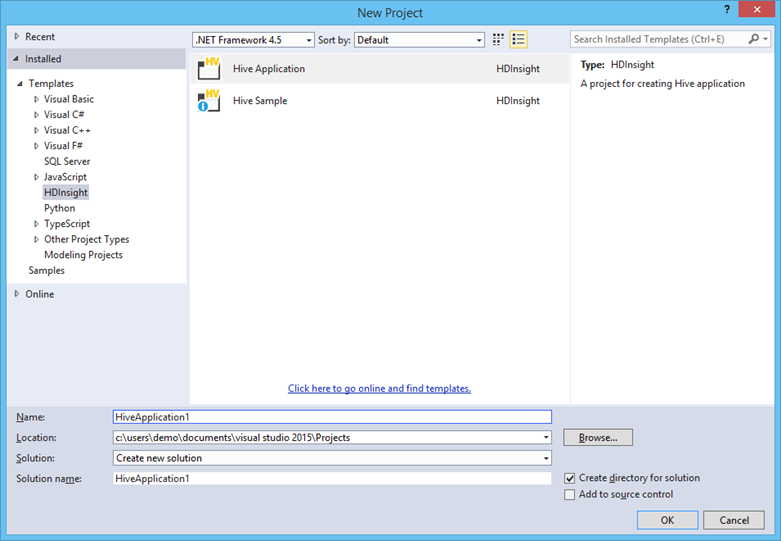
For more complex script development and lifecycle management, you can create Hive projects within Visual Studio. In the new project dialog (see below) you will find a new HDInsight Template category. A helpful starting point is the Hive Sample project type. This project is pre-populated with a more complex Hive query and sample data for the case of processing web server logs.
To get started visit the Azure HDInsight page to learn about Hadoop features on Azure.