Earlier this month, we announced that Microsoft Power Apps applications can now be part of your Microsoft 365 Copilot conversations – letting users interact with their model-driven apps directly from Copilot. Today, we’re unlocking the next phase with custom tools and rich app-powered UI, giving customers the flexibility to build and shape experiences their own way.
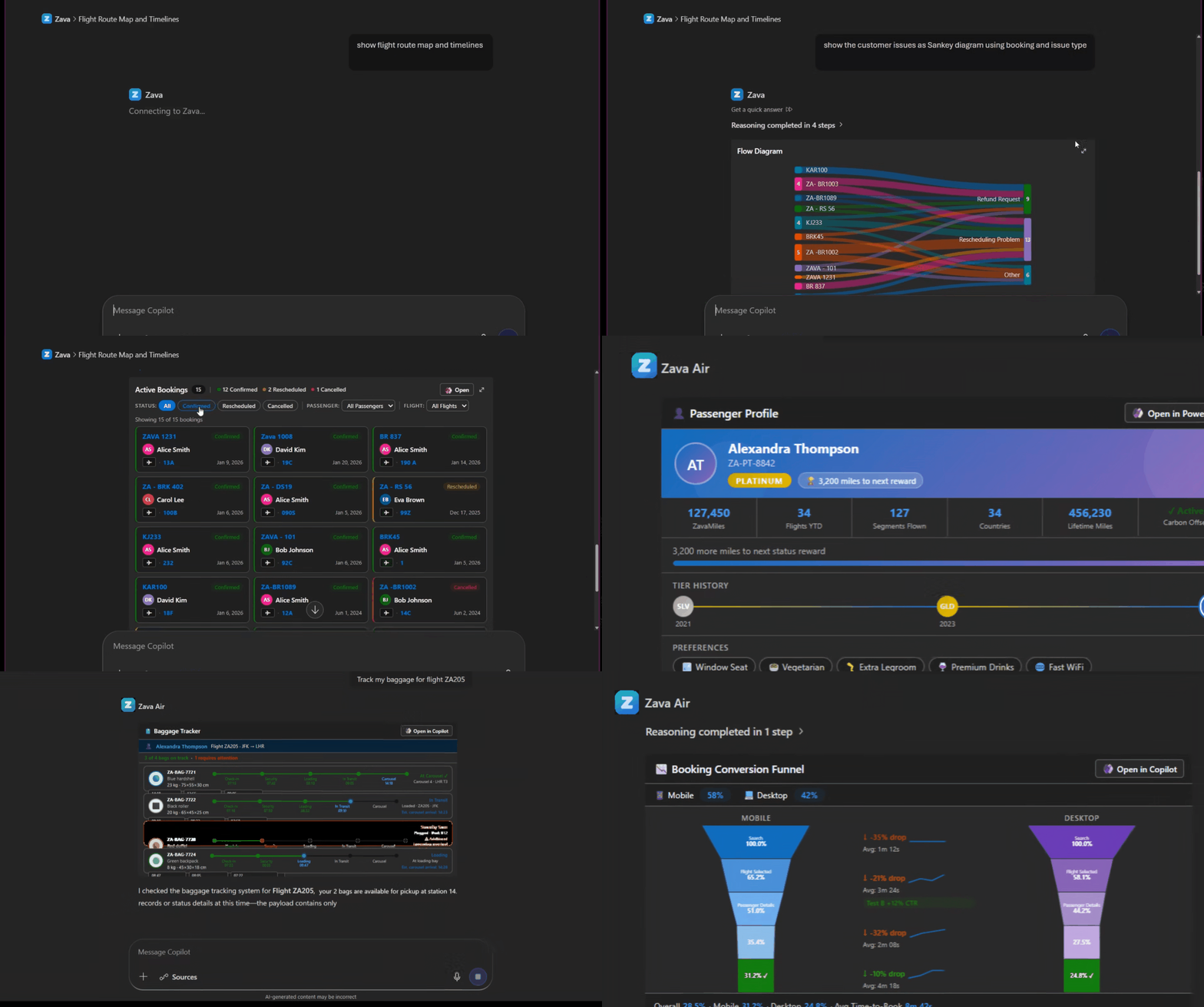
These capabilities let you go beyond the built-in app tools for grids and forms that you can already enable with a few clicks for any model-driven app. Taking the next step in this journey, makers can now create tailored business actions, combined with immersive, interactive experiences, powered by Copilot and Microsoft Work IQ. Custom tools and rich UI components get added to the same app’s MCP server that also includes the built‑in app tools. With these new capabilities, Copilot experiences can feel less like requests and more like collaboration – visual, contextual, and action‑ready. Whether tracking case progress over time, spotting friction in a business process, or staying aligned on customer outcomes, insights can be presented in ways that naturally guide the next step.
Custom tools: Your app’s logic in Copilot
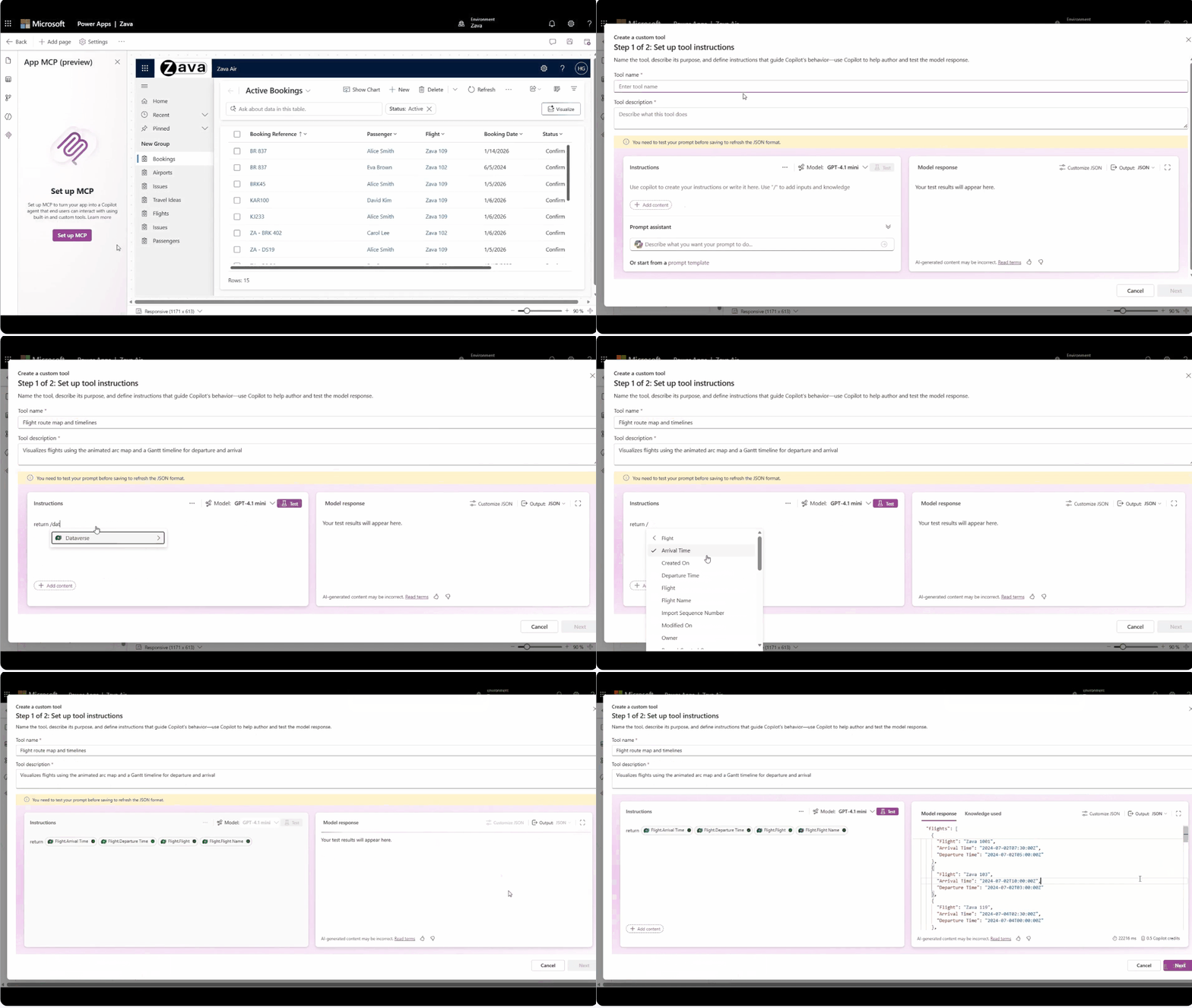
Your app’s MCP server already includes built-in app tools for querying, creating, viewing, and editing records in Microsoft Dataverse. Custom tools let you extend the app agent with your own MCP-powered actions, authored directly inside Power Apps using a prompt builder designer.
Each tool has a name, description, and instructions that tell the AI model what data to produce, and Copilot uses the tool metadata to decide when to invoke it.
Copilot can dynamically chain multiple tools together using the tool input parameters. For example, a “Sankey Chart Visualizer” tool can accept data which could be sourced from a natural language Dataverse query. The tool can then transform it into a weighted flow structure, and pass it to a widget for visualization – all triggered by a single natural-language prompt.
App-powered UI widgets
Widgets are self-contained, MCP-compliant HTML files built on Fluent UI that automatically adapt to light and dark Copilot themes. As part of this release, we are also introducing the generate-mcp-app-ui skill in Claude Code and GitHub Copilot CLI to help you quickly build widgets using natural language.
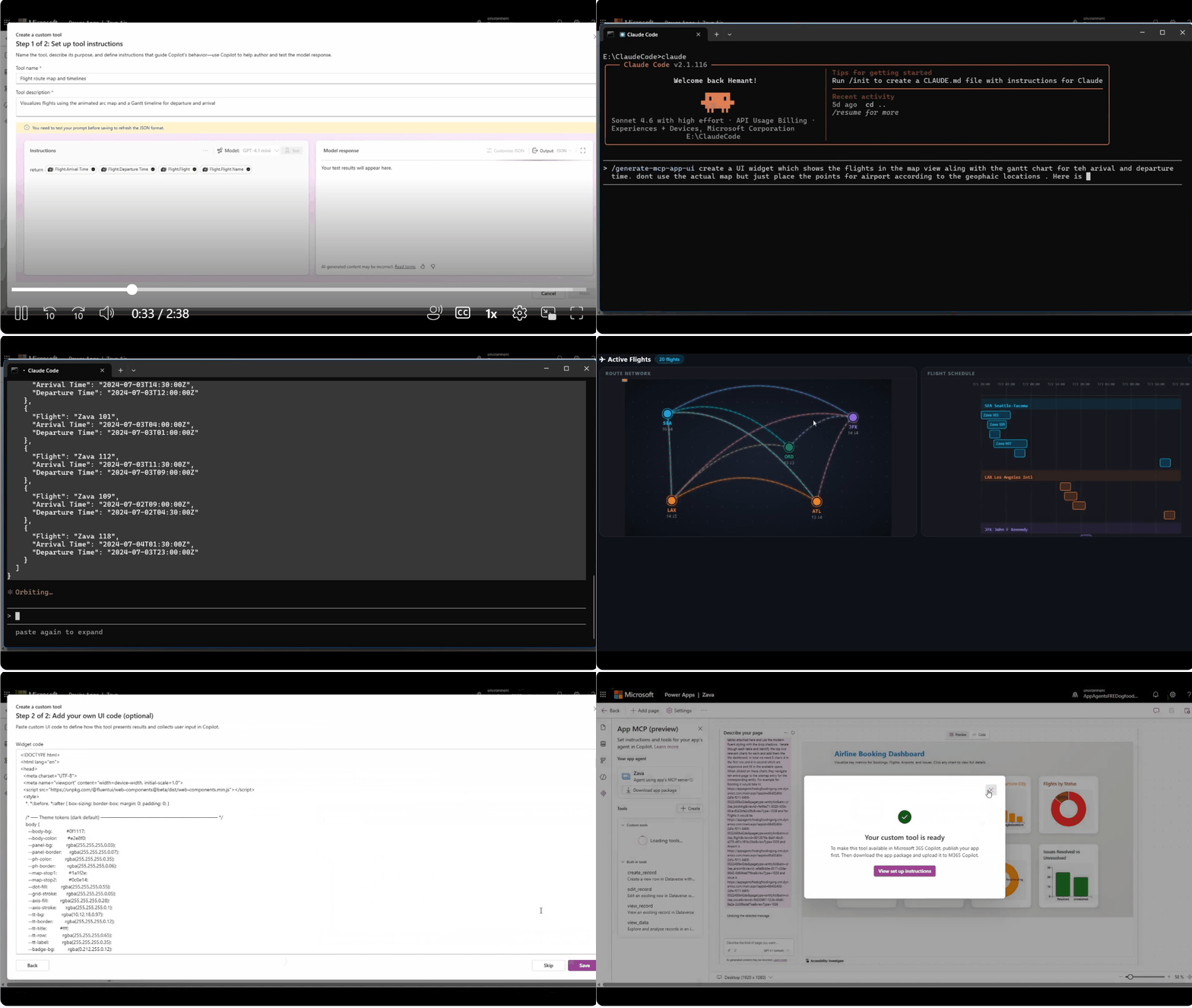
The skill produces a polished, theme-aware widget, ready to drop into your custom tool’s UX field.
How to get started
Step 1 – Enable your app’s MCP server – Open your model-driven app in Power Apps, select the App MCP icon in the left nav, and choose Set up MCP.
Step 2 – Add custom tools – In the Tools section of the App MCP tab, select Create custom tool. Give your tool a clear name and description (Copilot uses these to decide when to invoke it), write the Dataverse query instructions, or prompt using input parameter, and finally test the JSON output.
Step 3 – Attach a widget (optional) – Generate a widget for your tool using the /generate-mcp-app-ui skill and JSON tool output above. Test locally and then paste it into the tool’s UI field on step 2 of the tool editor.
Step 4 – Deploy – Download the updated app package and upload it to Microsoft Teams or publish it through the Microsoft 365 admin center for your organization.
Under the hood
This feature uses the Microsoft 365 Copilot extensibility platform and its MCP Apps capability. Power Apps generates an MCP server and a declarative agent from your model-driven app, and custom tools and widgets plug directly into that agent – no separate infrastructure required.
Documentation
Prerequisites: a model-driven app, a Microsoft 365 Copilot license, and permission to upload custom apps in Microsoft Teams. This is a preview feature – available for model-driven apps only at this time starting with early release stations.
We’d love to hear about what you build. Share your feedback and ideas through the Power Apps Community.