

This is a blog series that responds to common questions we receive from customers about deployment of Microsoft 365 security solutions. In this series, you’ll find context, answers, and guidance for deployment and driving adoption within your organization. Check out Collaborate Securely, the fifth blog in our eight-blog series on deploying intelligent security scenarios.
Employees are often tasked with preparing documents that require them to gather expertise from various people, often both internal and external to their organization. This common practice can expose your company data at unsecured points along the way. To mitigate risk, Microsoft 365 has simplified and secured the process of sharing files so that employees can easily gather data, expert opinions, edits, and responses—from only the right people in a single document.
How can I centrally store information, so it’s discoverable by colleagues but not anyone else?
To answer this question, let’s start with storage first, then move to search.
Store securely
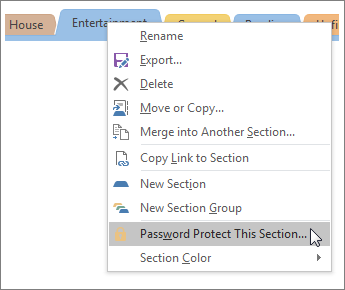
To help your employees easily discover relevant data for their projects and keep that data internal and secure, you can build a team site in SharePoint Online. If your employees need to make their notes or informal insights discoverable, but keep the information secure, deploy OneNote and have employees password-protect their notes.
You can deploy OneNote through Microsoft Intune to your Intune-managed employee devices, or have your employees sign in with their Microsoft Azure‒provisioned ID and download OneNote to their devices. The owner of the SharePoint library, list, or survey can change permissions to let the right people access the data they need while restricting others. You can also empower your employees to build and maintain their own SharePoint Online team with security safeguards that you have established.
Search securely
Once you’ve set up your team site, SharePoint Intelligent Search and Discovery allows both you and your employees to discover and organize relevant information from other employees’ work files across Microsoft 365. It keeps your organization’s documents discoverable only within your protected cloud, according to each user’s permission settings. You can also set permissions, so your employees will see only documents that you have already given them access to.
How do I make use of automation to ensure that employees have the correct permissions?
By enabling a dynamic group in Azure Active Directory (Azure AD), you will ensure that users can be automatically assigned to groups according to attributes that you define. For example, if users move to a new department, when their department name changes in Azure AD, rules will automatically assign them to new security groups defined for their new department. By using these Azure AD‒based advanced rules that enable complex, attribute-based, dynamic memberships for groups, you can protect organizational data on several levels.
Deployment tips from our experts
- Make information discoverable and secure. Help your employees easily discover relevant data for their projects. Start by building a team site in SharePoint Online. Store notes securely in Microsoft OneNote and ensure they discover relevant information across Office 365 with SharePoint Intelligent Search and Discovery.
- Plan for success with Microsoft FastTrack. FastTrack comes with your subscription at no additional charge. Whether you’re planning your initial rollout, needing to onboard your product, or driving end-user adoption, FastTrack is your benefit service that is ready to assist you. Get started at FastTrack for Microsoft 365.
Want to learn more?
For more information and guidance on this topic, check out the white paper “Empower people to discover, share, and edit files and information securely.” You can find additional security resources on Microsoft.com.
Coming Soon! “Share files easily and securely” is the seventh installment of our “Deploying Intelligent Scenarios” series. In November, we will kick off a new series: “Top 10 Security Deployment Actions with Microsoft 365 Security.”
More blog posts from this series
- Tips for getting started on your security deployment
- Accelerate your security deployment with FastTrack for Microsoft 365
- First things first: Envisioning your security deployment
- Now that you have a plan, it’s time to start deploying
- New FastTrack benefit: Deployment support for co-management on Windows 10 devices
- Assessing Microsoft 365 security solutions using the NIST Cybersecurity Framework
- Enable your users to work securely from anywhere, anytime, across all of their devices
- Protect your data in files, apps, and devices
- Cybersecurity threats: How to discover, remediate, and mitigate
- Protecting user identities
- Collaborate securely